
Account setup
Create and Verify a Client Account
Public registration is available, but the email address must be verified before the account can be used to create and manage portal tickets.
On this guide
- Complete the production registration form
- Register safely
- If verification or sign-in fails
- Finish and verify the customer action
1
Complete the production registration form
- Enter your own business email address, real full name, phone number, and correct timezone.
- Create and confirm a unique password. Never send that password or a one-time code to DSE.
- Select Register once and wait for the confirmation screen and verification email.
- Verify the account, return to the client sign-in page, and sign in before opening a portal ticket.
- Ask DSE to verify the correct parent company and site after registration when they are not already connected.
2
Register safely
- Open the client sign-in page and choose the registration option.
- Use your own business email address and your real contact name.
- Create a unique password that you do not use for another service.
- Submit the form and watch for the verification email.
- Open the verification link only if you requested the account and the link points to the DSE support site over HTTPS.
3
If verification or sign-in fails
- Check spam and quarantine folders and confirm the email address was entered correctly.
- Avoid creating repeated accounts for the same person or email address.
- Use Forgot My Password if an account may already exist.
- Email helpdesk@detection-systems.com when the account needs to be connected to the correct company or site.
- Never send DSE your password or a one-time verification code.
4
Finish and verify the customer action
- Wait for the confirmation page, updated conversation, email, or account message before repeating the action.
- Confirm the customer, company, site, DSE-###### ticket, and visible status are the ones you intended.
- Save the confirmation or reply on the same ticket when more information is needed.
- Contact DSE immediately if account or ticket visibility includes unrelated customer information.
Visual references
Open any image to see it full size. Annotated images use numbered callouts to guide you.
 Open full size ↗
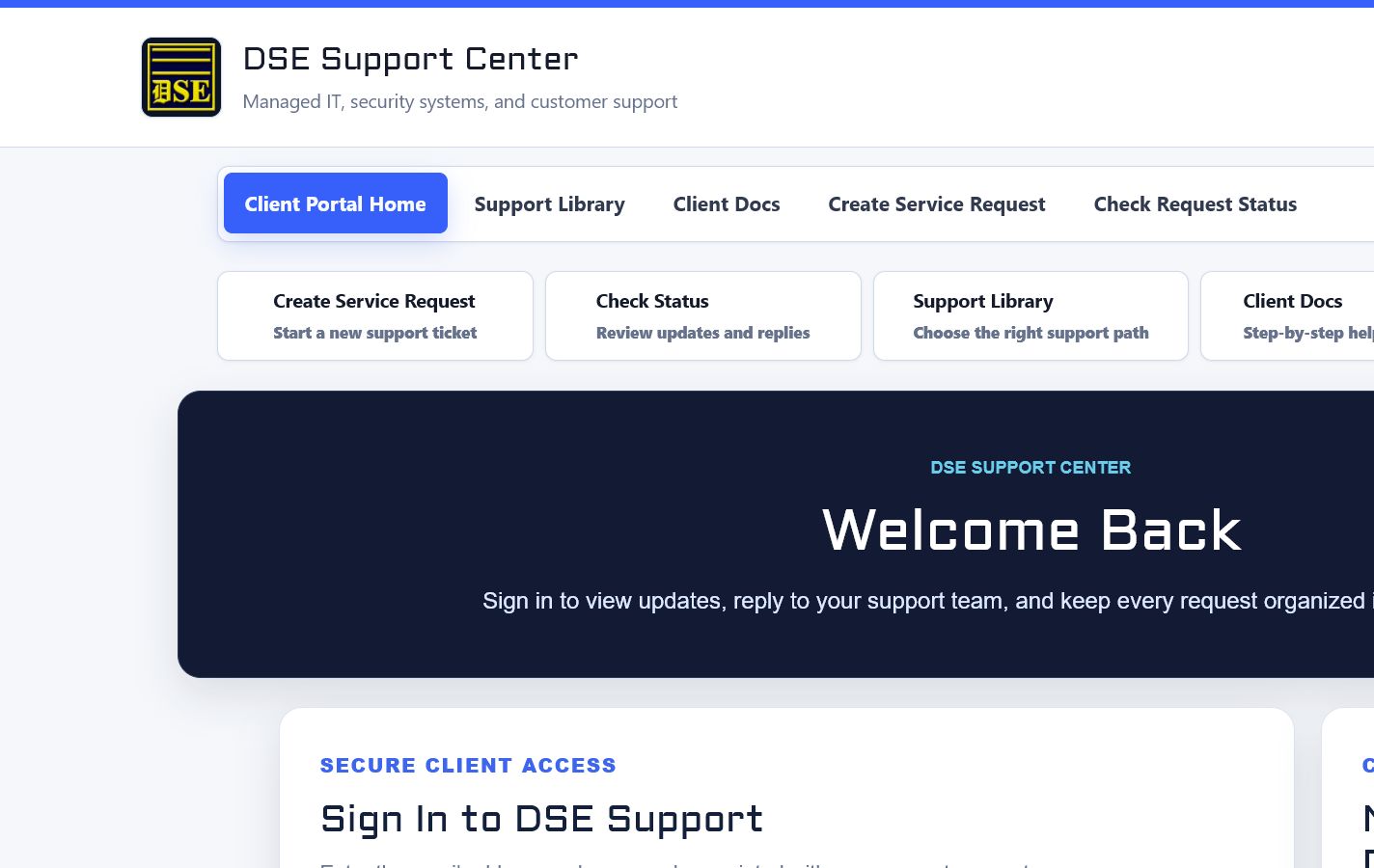 Open full size ↗
 Open full size ↗
Before you finish
- Confirm context. Recheck the DSE domain, signed-in account, company or site, ticket number, device, and request type shown on screen.
- Confirm the result. Perform one harmless verification and make sure the visible status matches what you expected.
- Keep the reference. Save the DSE-###### ticket number, confirmation, or other safe reference needed to continue the same conversation.
- Stop on a mismatch. Do not repeat a high-impact action. Preserve a safe screenshot, note the time and exact error, refresh once, and update or open the correct DSE ticket.
Content owner: DSE Service Operations. Reviewed July 16, 2026. Examples and visuals use fictional data.